

LabX EU Withdrawal guide · Requests & emails
Configure durable-medium confirmation and status emails
In short
Open Settings > Notifications to set your sender name and reply-to email and customize four email templates: Admin notification, Confirmation of receipt (sent immediately on a durable medium when a customer submits a declaration), Withdrawal approved, and Withdrawal rejected.
When a customer submits a withdrawal declaration, the app immediately emails them a Confirmation of receipt containing their reference number, order number, timestamp, and requested items — providing the durable-medium acknowledgement required by EU rules. You can also configure staff alerts and approval or rejection emails.
Step 1: Set your sender details and pick a template
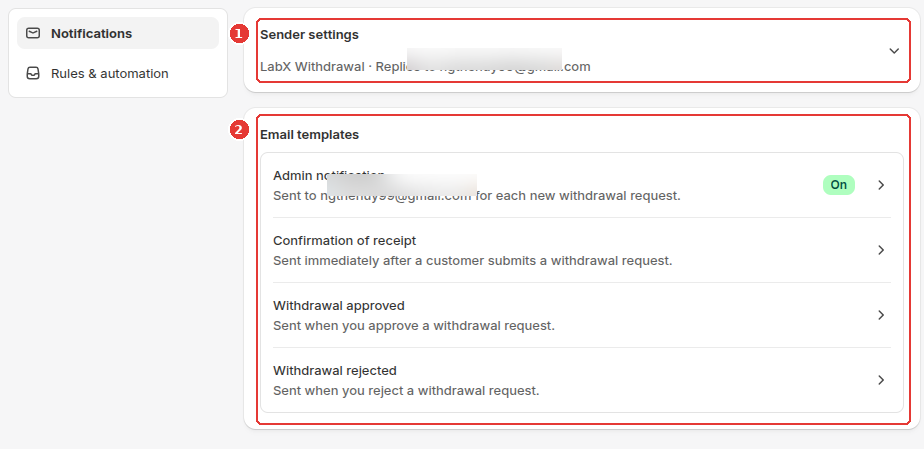
Open Settings in the app navigation and select the Notifications tab:
- Click Sender settings (1) to edit the sender name shoppers see in their inbox and the reply-to email address where customer replies are delivered.
- In Email templates (2), click any of the four templates to open its editor:
- Admin notification: Sent to your store email for each new withdrawal declaration.
- Confirmation of receipt: Sent immediately to the shopper after they submit a withdrawal declaration.
- Withdrawal approved: Sent when you accept or approve a withdrawal request.
- Withdrawal rejected: Sent when you decline a withdrawal request.
Step 2: Edit branding, content, and styling in the email editor
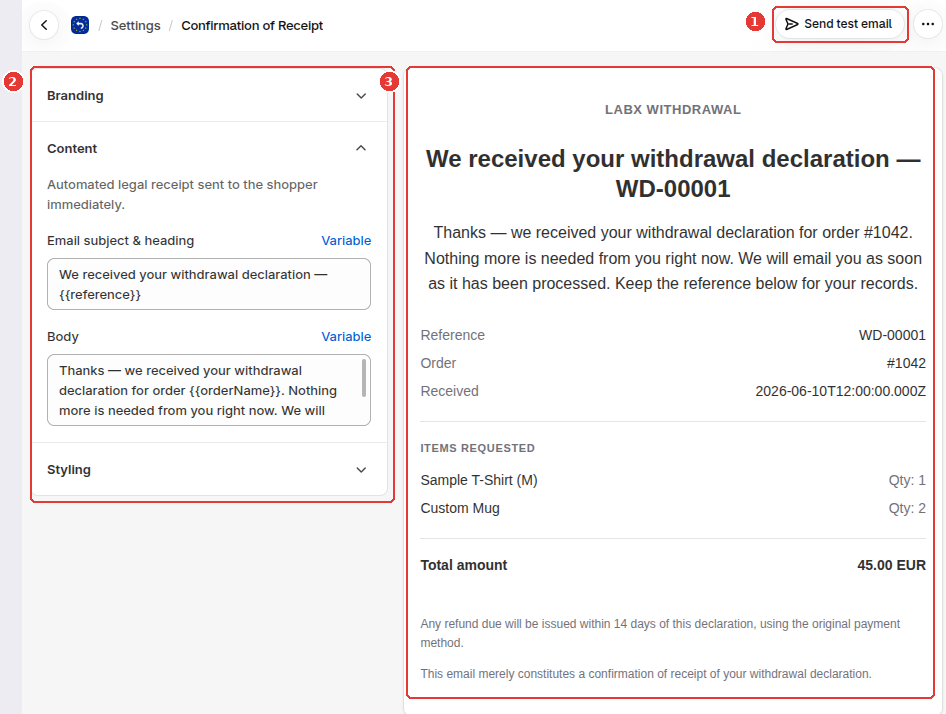
Inside an email template (such as Confirmation of Receipt):
- Click Send test email in the top-right title bar (1) at any time to send a sample email to your own inbox.
- Use the left accordion sections (2) to customize:
- Branding: Store logo, header title, and brand accent colors.
- Content: Email subject & heading and Body copy. Click Variable to insert dynamic placeholders such as
{{reference}}and{{orderName}}. - Styling: Colors, typography, and layout spacing for the email container.
- Check the live HTML email preview on the right (3) — which shows the reference number, order number, UTC receipt timestamp, requested items, and total amount — then click Save.
Frequently asked questions
Why is the Confirmation of receipt email sent immediately?
Under Article 11a of Directive 2011/83/EU (added by Directive (EU) 2023/2673), when a consumer submits a withdrawal declaration via the electronic withdrawal function, the trader must acknowledge receipt without undue delay on a durable medium (such as email), including the contents of the declaration and the submission timestamp.
What dynamic variables can I use in email templates?
Click the Variable button next to the subject or body fields to insert placeholders such as {{reference}}, {{orderName}}, {{customerName}}, or {{shopName}}.
Still need help?
Our developers answer support directly. Email [email protected] or reach out through our contact page.