

LabX EU Withdrawal guide · Get started
Install the app and turn on the withdrawal button and page
In short
After installing LabX EU Withdrawal Button Form, open Online Store > Themes > Customize, click App embeds, switch on LabX Withdrawal, and click Save. Then use the Form channels card on the app home page to toggle the floating button or copy your /apps/withdrawal page URL for your footer menu.
LabX EU Withdrawal Button Form gives shoppers two ways to reach your withdrawal form: a floating button on your storefront and a dedicated Withdrawal page at /apps/withdrawal. Both channels use the LabX Withdrawal theme app embed.
Step 1: Turn on the LabX Withdrawal app embed
Open your theme editor from Online Store > Themes > Customize (or click App embed settings on the app home page):
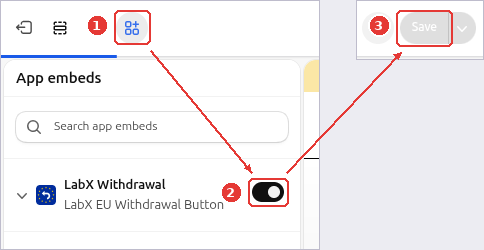
- Click the App embeds icon (1) in the left toolbar.
- Switch on LabX Withdrawal (
LabX EU Withdrawal Button) (2). - Click Save (3) in the top-right corner.
Step 2: Choose your Form channels on the app home page
Return to the LabX EU Withdrawal Button home page in Shopify admin:
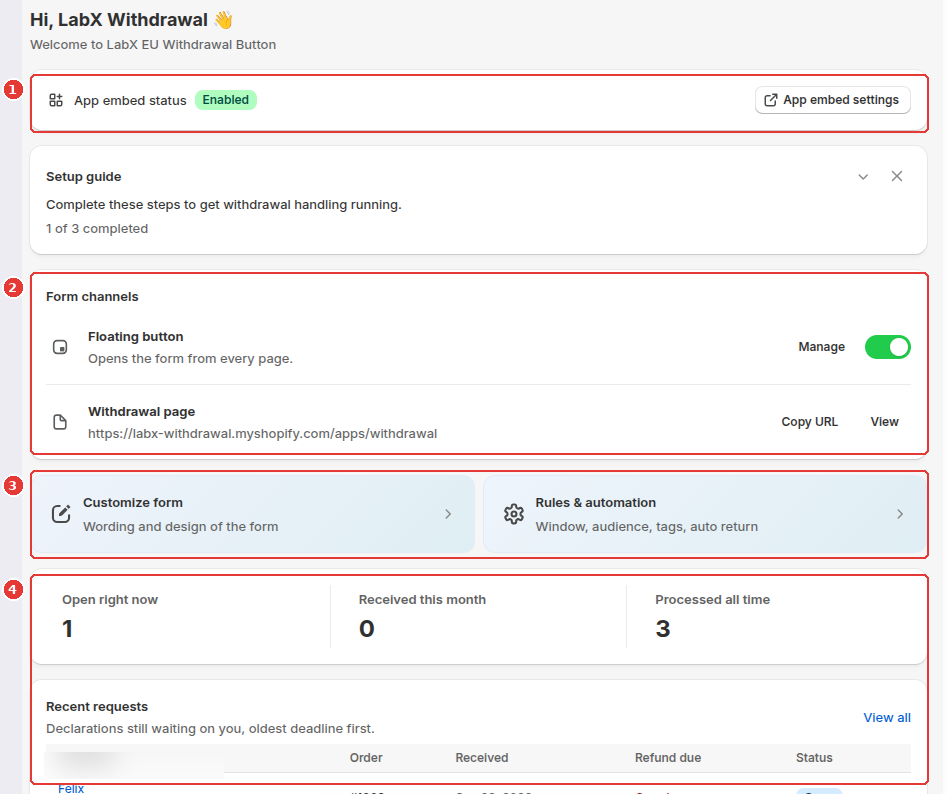
- Verify that App embed status shows Enabled (1).
- In the Form channels card (2):
- Toggle the Floating button switch on or off, or click Manage to adjust its label, icon, and position.
- Next to Withdrawal page (
/apps/withdrawal), click Copy URL to add the link to your Shopify navigation menu (Online Store > Navigation) or click View to open it in a new tab.
- Use Customize form and Rules & automation (3) to tailor your form copy and 14-day window settings, and monitor incoming declarations in Recent requests (4).
Step 3: Check the storefront result
Open your storefront to verify how shoppers access the form:
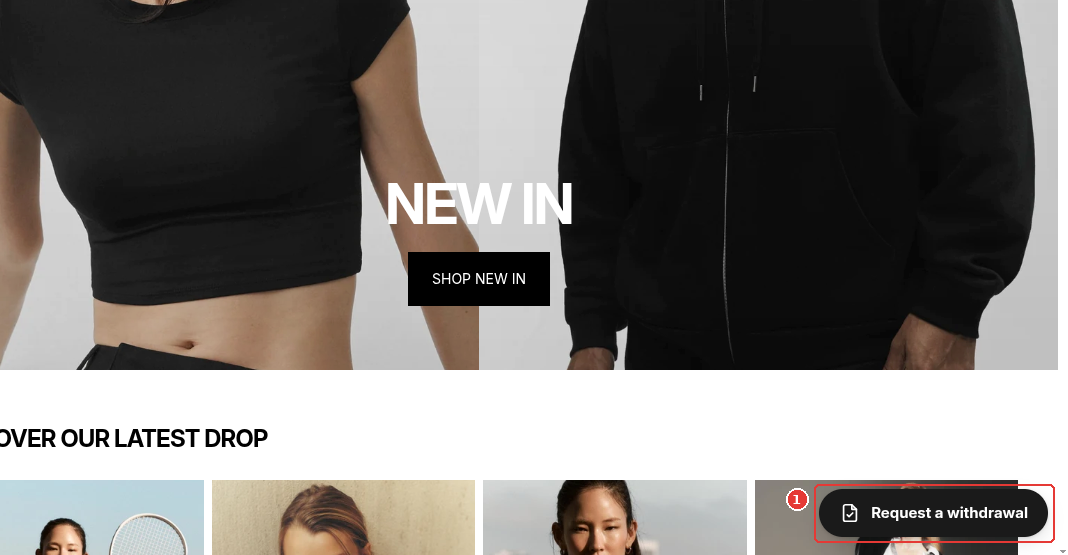
- When the Floating button is enabled, the Request a withdrawal pill appears at the bottom corner of your storefront (1):
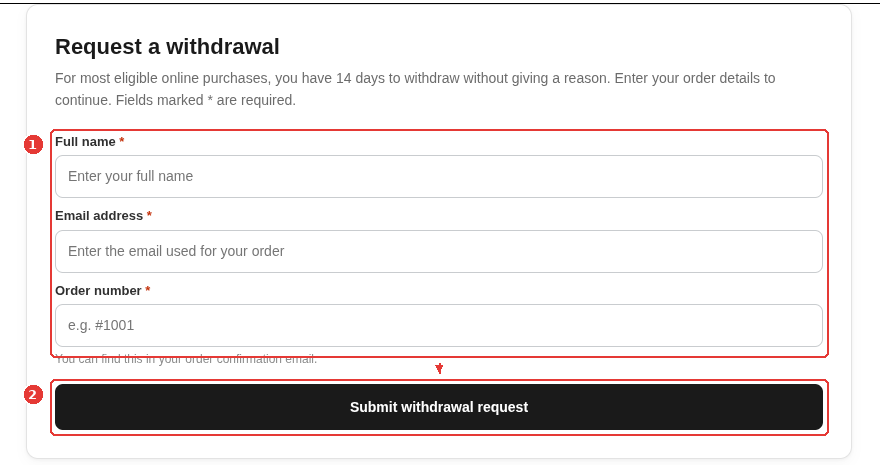
- When a shopper visits
/apps/withdrawalfrom your footer link, they see the full withdrawal page with order lookup fields (1) and the submit button (2):
Frequently asked questions
Can I use the dedicated /apps/withdrawal page without the floating button?
Yes. You can turn off the Floating button switch in the Form channels card (or in Widget & form > Appearance) and link directly to /apps/withdrawal from your store footer and policies. Keep the theme app embed enabled so the withdrawal script and styles load on that page.
Do customers need to log in to use the withdrawal form?
No. Customers look up their order with their full name, email address, and order number, so guest checkout shoppers can declare a withdrawal without creating an account.
Still need help?
Our developers answer support directly. Email [email protected] or reach out through our contact page.