

LabX EU Withdrawal guide · Requests & emails
Review and process withdrawal requests in the queue
In short
Open Withdrawals in the app navigation to filter declarations across Requested, Open, Declined, Canceled, and Closed. Click any request to review the items selected, check the 14-day refund deadline, accept, decline, or mark the request as refunded, and view the append-only audit timeline.
Every withdrawal declaration submitted on your storefront is recorded in Withdrawals with a unique reference ID (such as #WD0002) and a 14-day refund deadline calculated from the submission timestamp.
Step 1: Filter and search the Withdrawals queue
Open Withdrawals in the app navigation:
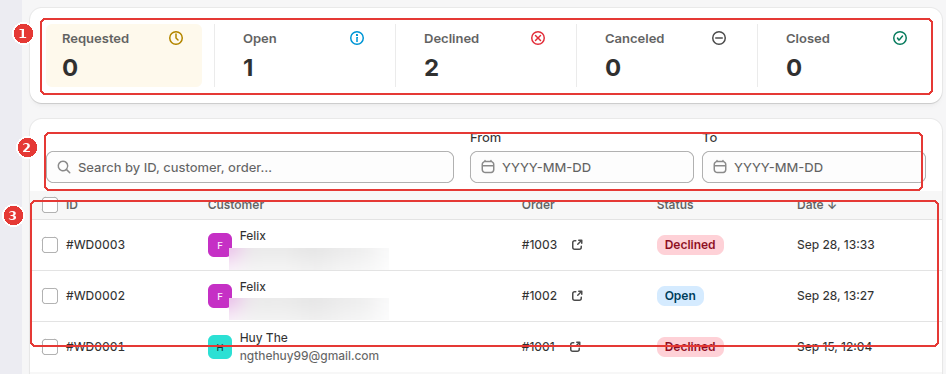
- Click one of the five status counter cards at the top (1) to filter the queue by Requested, Open, Declined, Canceled, or Closed.
- Use the Search box and the From / To date pickers (2) to find a declaration by reference ID, customer name, email address, or Shopify order number.
- Click any row in the requests table (3) to open the declaration details, or click the order number link (for example
#1002) to jump to the Shopify order.
Step 2: Process a request and review the audit timeline
Inside a withdrawal request detail page:
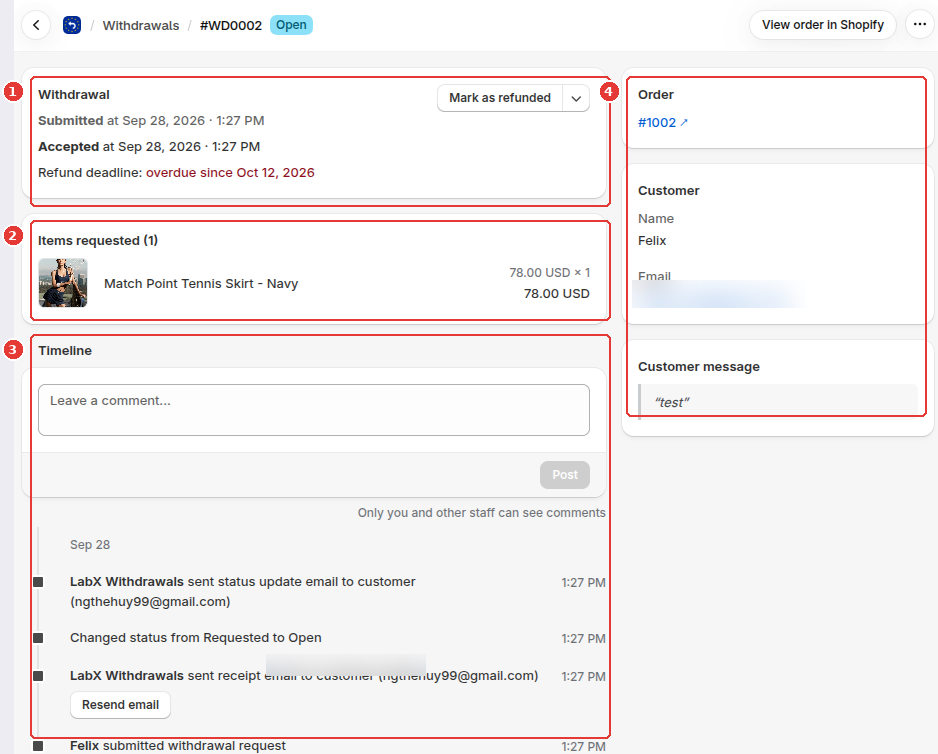
- In the Withdrawal card (1), check when the declaration was Submitted, its Refund deadline (14 days from receipt), and use the primary action button (such as Accept request or Mark as refunded) or the Other statuses menu to transition the request and optionally notify the customer by email.
- In Items requested (2), review the exact line items, quantities, and unit prices the customer selected for withdrawal.
- In Timeline (3), post internal team comments or review the append-only audit log of every status change and email sent (including a Resend email button on the confirmation receipt).
- In the right sidebar (4), view the linked Shopify Order (
#1002 ↗), Customer contact details, and any optional Customer message submitted with the form.
Frequently asked questions
Does marking a request as refunded in the app issue the payment in Shopify automatically?
Marking a request as refunded updates the withdrawal status and audit trail in the app (and optionally sends the outcome email). You still issue the actual payment refund on the Shopify Order page, which you can open directly with the View order in Shopify button at the top of the request page.
Can timeline events be edited or deleted?
System events (submitted declaration, receipt email sent, status transitions) are append-only so your audit trail stays intact as evidence of when the declaration was received and handled. Staff members can post internal comments and delete their own comments.
Still need help?
Our developers answer support directly. Email [email protected] or reach out through our contact page.