

LabX Fraud Filter guide · Blocking rules
Create and manage blocking, redirect, and allow rules
In short
Open Blocking Rules in the app navigation to add storefront rules across six criteria: IP Address, Location, Region, ISP, User Agent, and Referrer URL. Switch between the Block and Redirect tabs at the top to choose what happens when a rule matches, and manage all existing rules in the table below.
The Blocking Rules page is where you create and manage all storefront access rules.
Navigate the Blocking Rules page
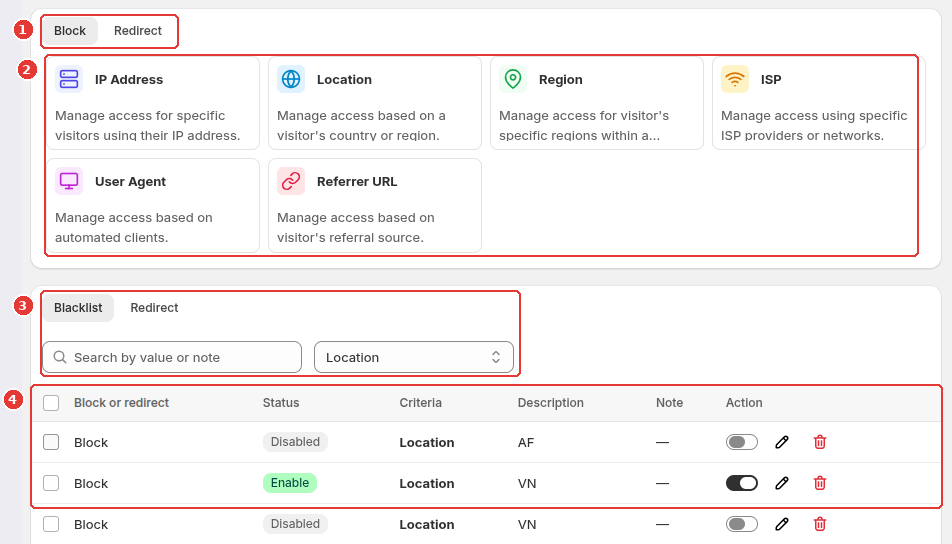
- Choose Block or Redirect in the top tab bar (1) to decide whether the new rule you create will show the block screen or redirect visitors to another URL.
- Click one of the six rule type cards (2) to create a rule:
- IP Address: Match exact IPv4/IPv6 addresses, IP prefixes (
IP Start With), or inclusive IP ranges, entered manually or uploaded via CSV. - Location: Block specific countries or continents, or use Block all except… to allow only the countries you sell to.
- Region: Target specific states, provinces, or regions within a country (such as
US-CAorCA-ON). - ISP: Match visitors by Internet Service Provider name or Autonomous System Number (ASN).
- User Agent: Match automated clients, scrapers, or specific browser user-agent strings.
- Referrer URL: Block or redirect visitors arriving from unwanted referral domains or URLs.
- IP Address: Match exact IPv4/IPv6 addresses, IP prefixes (
- In the rules list below, switch between Blacklist and Redirect, search by keyword or IP in Search rules, or filter by Criteria (3).
- In the rules table (4), toggle a rule on or off with the switch in the Action column, click the pencil icon to edit, or click the trash icon to delete. You can also select multiple checkboxes to turn rules on or off in bulk.
Next, see how to configure IP address and country rules in detail.
Frequently asked questions
How does storefront rule evaluation work?
Storefront blocking rules are published to a Shopify metaobject and evaluated by the Fraud Guard script in the visitor's browser. Because they run client-side, a visitor who disables JavaScript can bypass storefront rules. To stop orders at checkout regardless of browser settings, pair storefront rules with Checkout Protection.
What is the difference between Block and Redirect rules?
A Block rule replaces the storefront page with your customized block screen. A Redirect rule sends matching visitors to a URL you specify (such as a regional storefront or an informational page).
Still need help?
Our developers answer support directly. Email [email protected] or reach out through our contact page.