

LabX Fraud Filter guide · Blocking rules
Block or redirect by IP address, country, and region
In short
From Blocking Rules, click IP Address to block exact IPs, prefixes, or ranges (manually or via CSV up to 2,000 lines), or click Location to block selected countries or allow only your target markets. When a visitor matches an active rule, the storefront displays your block page.
IP address and country rules are the fastest way to stop repeat bad actors or restrict storefront access to the markets you serve.
Create an IP Address rule
Open Blocking Rules and click IP Address:
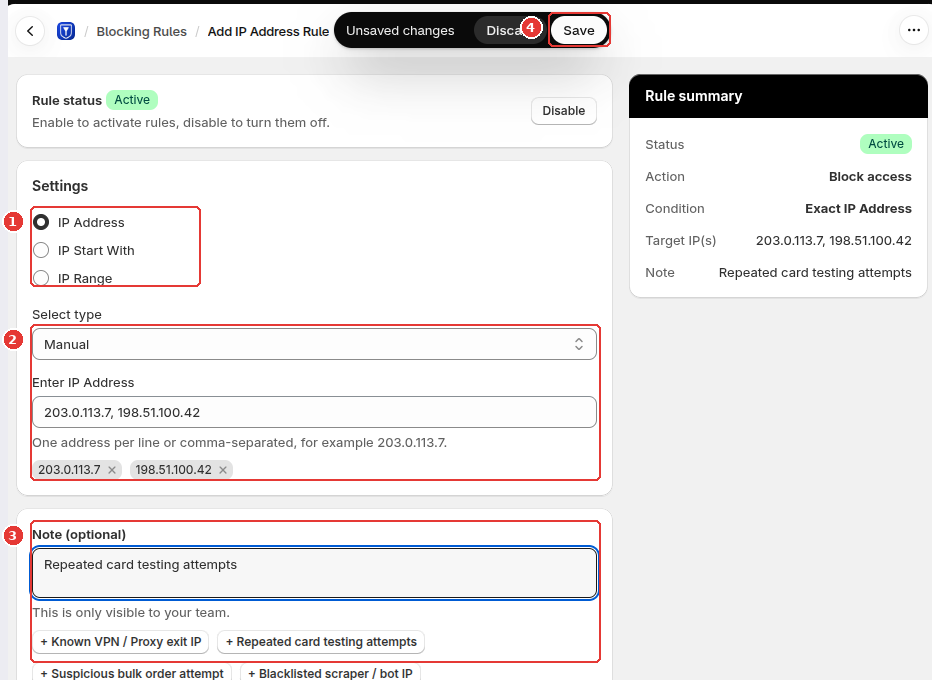
- Under Settings, choose how the rule should match (1):
- IP Address: Exact IPv4 or IPv6 addresses (for example
203.0.113.7). - IP Start With: Address prefixes (for example
203.0.113.). - IP Range: A start and end IP range.
- IP Address: Exact IPv4 or IPv6 addresses (for example
- Choose Manual or Upload CSV under Select type, then enter one or more IP addresses separated by commas or new lines (2). Each added IP appears as a removable tag below the input.
- Add an optional internal Note (or click one of the quick-reason chips such as
+ Repeated card testing attempts) so your team knows why the IP was blocked (3). - Review the Rule summary on the right and click Save in the top save bar (4).
Create a Location (country) rule
Open Blocking Rules and click Location:
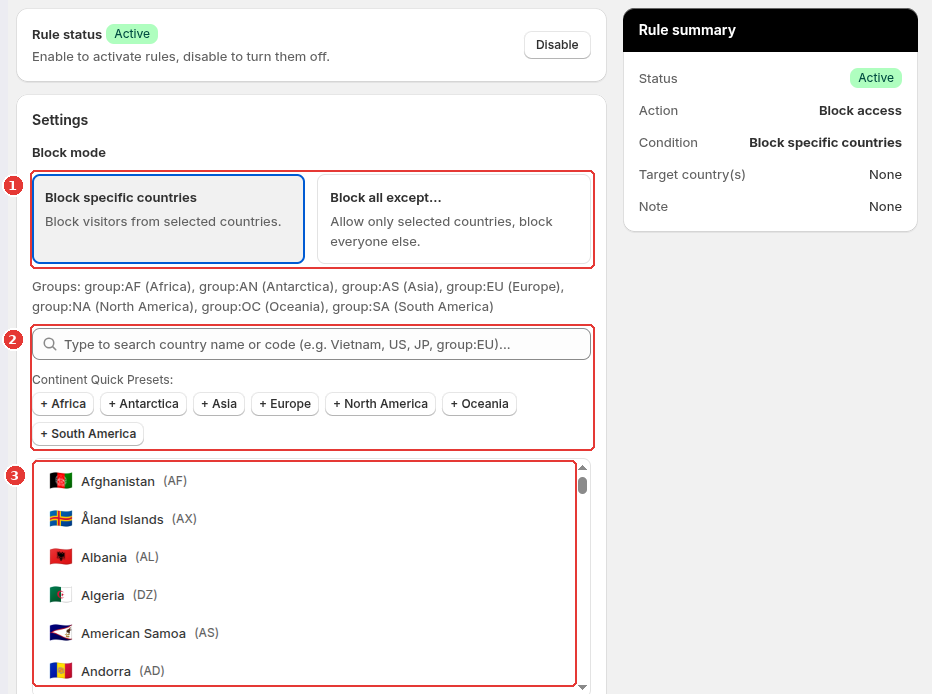
- Under Block mode, choose how country matching works (1):
- Block specific countries: Blocks visitors from the countries you select and allows everyone else.
- Block all except…: Allows only the countries you select and blocks visitors from all other countries.
- Search for countries by name or ISO code in Search & select countries, or click one of the Continent Quick Presets (
+ Africa,+ Asia,+ Europe,+ North America, etc.) to add a whole region at once (2). - Click individual countries in the list (3) to add or remove them, then click Save.
Storefront result when a visitor is blocked
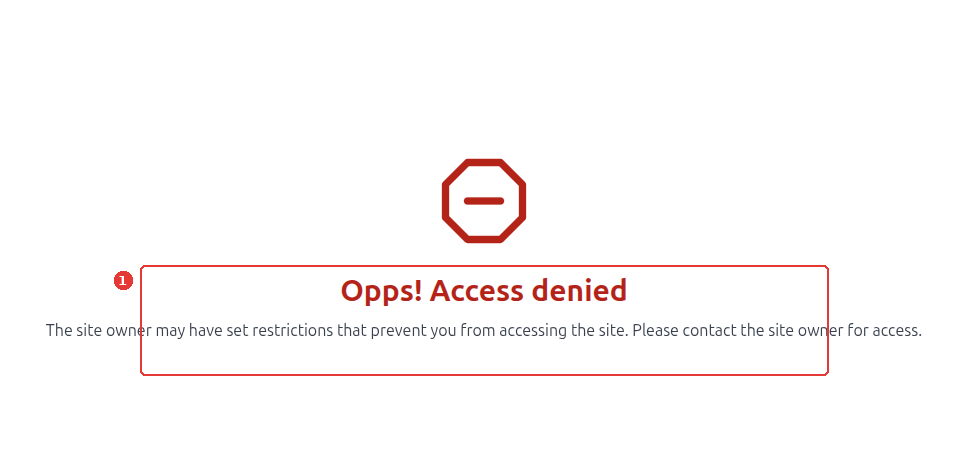
When an active IP or country rule matches a visitor on your storefront, the Fraud Guard app embed immediately displays the block screen (1) instead of your store content:
Frequently asked questions
How many IP addresses can I import in a CSV file?
Each CSV upload supports up to 2,000 lines, with one IP address or CIDR entry per line.
How do I keep myself from being blocked when testing a country rule?
Before enabling a rule that matches your own country or IP, copy your Admin access link from Settings > General settings and open it in your browser. It sets a bypass token so your browser skips all storefront rules.
Still need help?
Our developers answer support directly. Email [email protected] or reach out through our contact page.