

LabX Fraud Filter guide · Checkout & bots
Configure bot mitigation, Tor, datacenter, and content deterrents
In short
In Settings > Mitigator, switch on automatic blocking for unknown bots, suspicious crawlers, Tor exit nodes, and datacenter IP ranges while keeping trusted search, social, and AI crawlers allowed. In Settings > Content protection, turn on deterrents for text selection, right-click, and copy shortcuts.
Beyond individual IP and country rules, Settings > Mitigator and Settings > Content protection give you one-click switches for automated traffic and casual content copying.
Configure bot, Tor, and datacenter mitigation
Open Settings in the app navigation and click Mitigator:
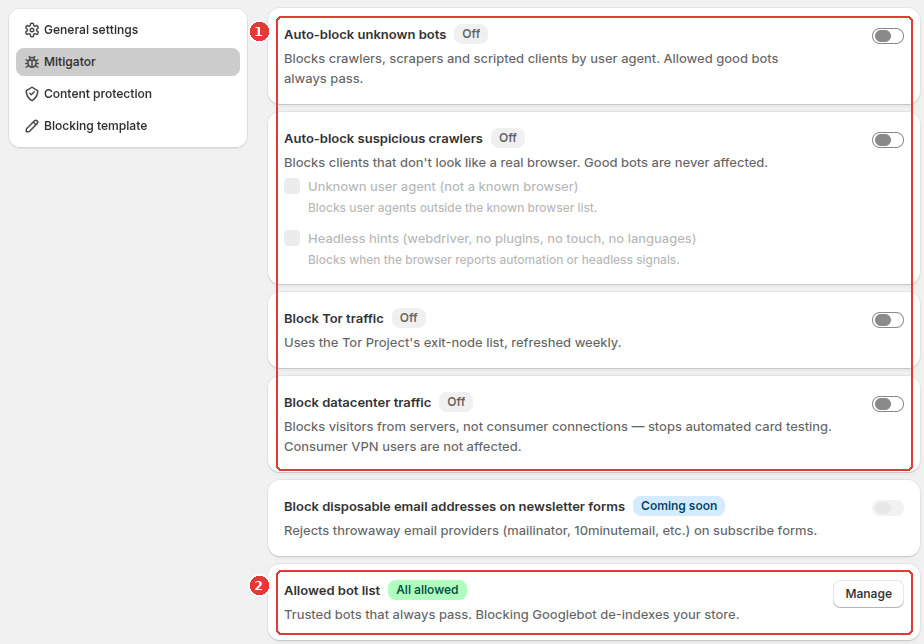
- Toggle on the automatic traffic filters you want to enforce (1):
- Auto-block unknown bots: Blocks crawlers, scrapers, and scripted clients by user-agent signature.
- Auto-block suspicious crawlers: Blocks clients that do not look like a real browser, with sub-options for Unknown user agent and Headless hints (
webdriver, missing plugins, touch, or language signals). - Block Tor traffic: Blocks connections coming from the Tor Project’s exit-node list (refreshed weekly).
- Block datacenter traffic: Blocks visitors coming from hosting and server IP ranges rather than consumer connections, helping stop automated scripts without affecting normal shoppers.
- In Allowed bot list (2), click Manage to inspect or customize which of the 25 known search engine, social media, AI, and SEO crawlers are always allowed through.
Enable storefront content protection deterrents
Click Content protection in the left Settings menu to discourage casual copying of your product text and images:
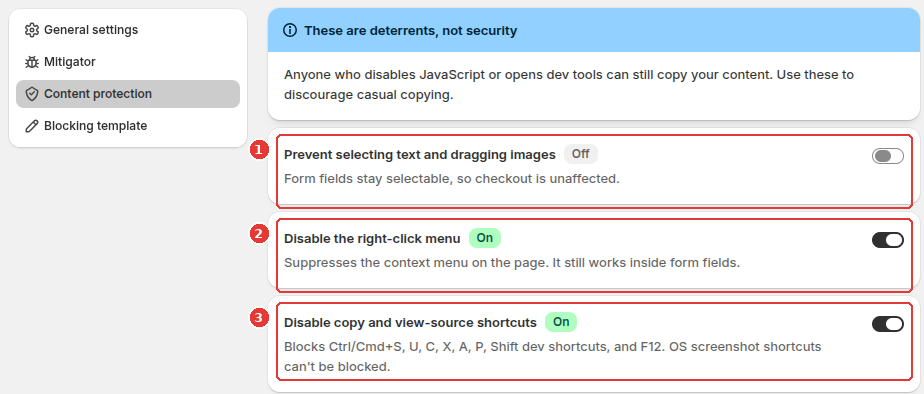
- Toggle Prevent selecting text and dragging images (1) to stop visitors from highlighting page copy or dragging product photos (form inputs remain selectable so checkout and search work normally).
- Toggle Disable the right-click menu (2) to suppress the browser context menu on storefront pages.
- Toggle Disable copy and view-source shortcuts (3) to block
Ctrl/Cmd+C,X,A,U,S,P, developer tools shortcuts, andF12.
Frequently asked questions
Will enabling bot mitigation block Googlebot or hurt my SEO?
No. The Allowed bot list of 25 verified search, social, AI, and ad crawlers (including Googlebot, Bingbot, Applebot, Facebook, and OpenAI crawlers) is evaluated before your block rules and bot switches.
Does Block datacenter traffic block consumer VPNs?
Block datacenter traffic targets server and hosting IP ranges used for automated scraping and card testing. Consumer VPN connections that route through residential or non-listed ranges are not blocked by this switch.
Still need help?
Our developers answer support directly. Email [email protected] or reach out through our contact page.